
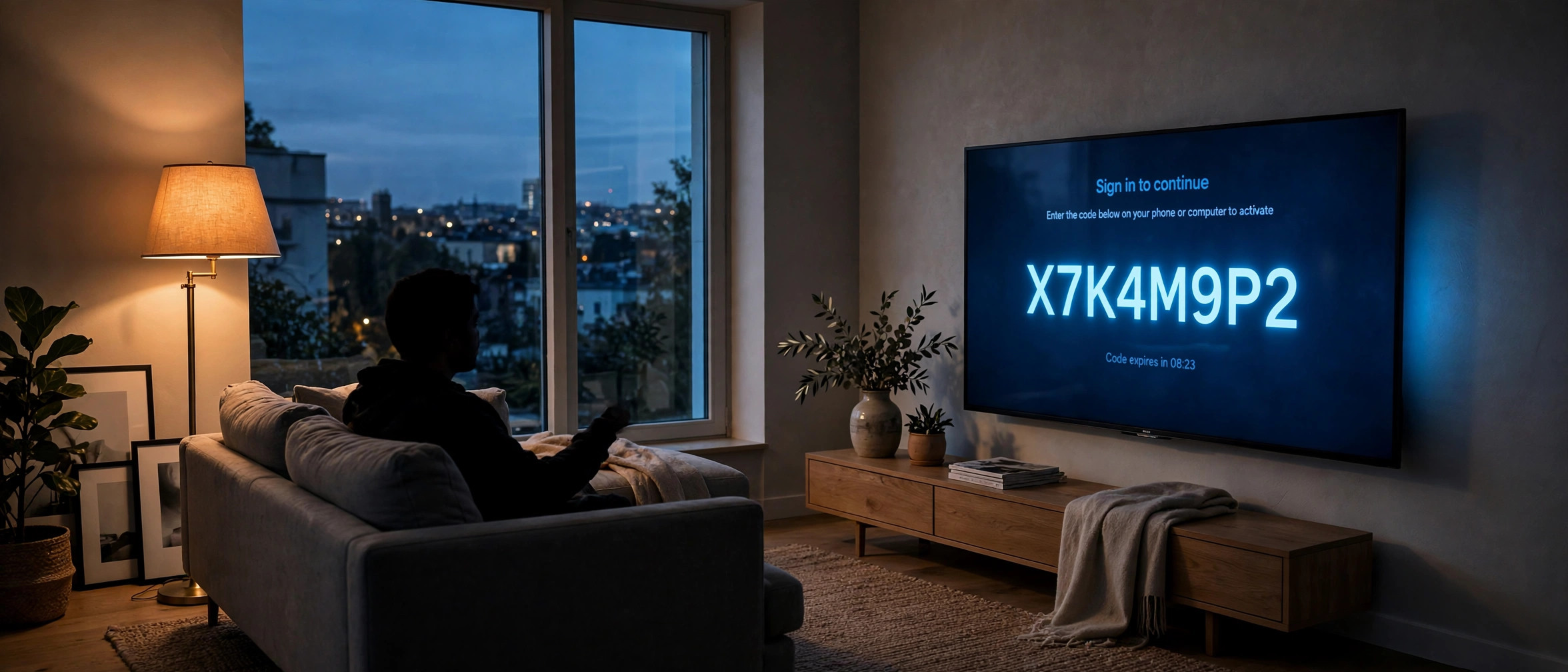
Setting up Disney+ on a new television or streaming stick usually comes down to one simple page: the disneyplus.com login begin activation screen. Instead of typing your email and password with a remote control, your TV or streaming device shows a short eight-digit code, and you enter that code on a phone, tablet, or computer where signing in is far easier. The whole process takes under two minutes once you know the steps.
This guide walks you through activating Disney+ on every major device — Samsung and LG smart TVs, Roku, Amazon Fire Stick, Apple TV, Android TV, Xbox, and PlayStation. You will also find a device-by-device comparison table and fixes for the most common problems, such as expired or already-used codes. If you have used a similar code-based flow before, the process will feel familiar; our guide to activating NFL on streaming devices covers an almost identical pattern.
What Is Disneyplus.com/Begin?
Disneyplus.com/Begin is Disney’s official device-activation page. When you open the Disney+ app on a smart TV, streaming stick, or games console and choose to sign in, the app does not ask for your password directly. Instead, it generates a unique eight-character code (letters and numbers) and tells you to visit the activation page on another device. You sign in there with your Disney+ account and type in the code. Once the code is accepted, the app on your TV signs in automatically.
This two-step design exists for a practical reason: typing a full email address and password with a TV remote is slow and error-prone. The disneyplus.com login begin code is short, case-insensitive in most cases, and works even on older smart TVs with clunky on-screen keyboards. It is also more secure, because your credentials never pass through the app on the television itself — they are entered on your personal phone or computer.
A few things worth knowing before you begin:
- The activation page only works if you already have a Disney+ subscription (or a bundled subscription, such as Disney+ through another provider). The code flow signs you in; it does not create a paid account from scratch.
- Each code is single-use and time-limited. If you take too long, you will need to generate a fresh one on the TV.
- You can activate as many devices as you like on one account, subject to Disney’s simultaneous-stream limits.
Before You Start: What You Need
Have these ready and the disneyplus.com login begin activation takes barely a minute:
- A second device — your smartphone, tablet, or laptop — with a web browser and internet access. This is where you will open the activation page.
- Your Disney+ account details — the email address and password associated with your subscription. If you signed up through a third party (for example, a mobile network bundle), keep that provider’s login handy.
- The Disney+ app installed on your TV or streaming device and updated to the latest version. An outdated app is the most common reason the code screen never appears.
- A stable internet connection on both devices. Activation fails silently if the TV drops off Wi-Fi halfway through.
Activate Disney+ on Your Device Using Disneyplus.com Login Begin
The steps below follow the same pattern on every platform: open the app, choose sign-in, note the eight-digit code, enter it at the official Disney+ activation page on another device, and wait for the app to log in automatically. The details vary slightly per device, so find your platform below.
Samsung Smart TV
- Press the Home (Smart Hub) button on your Samsung remote and open the Disney+ app. If it is not installed, open the Samsung App Store, search for “Disney+”, and install it.
- On the app’s welcome screen, select Log In. The app will display an eight-digit activation code along with instructions to visit the activation page.
- On your phone or computer, open a browser and go to the activation page shown on screen. Sign in with your Disney+ email and password.
- Type the code exactly as shown on the TV, then confirm. The TV app should sign in within a few seconds and show your Disney+ home screen.
Tip: On older Samsung models (pre-2016), Disney+ may not be supported at all. If the app is missing from the store and your TV is more than eight years old, consider adding a Fire Stick or Roku instead of fighting the built-in software.
LG Smart TV
- From the LG home screen, open the Disney+ app (install it from the LG Content Store if needed).
- Select Log In. The screen will show your eight-character code and a reminder of the activation web address.
- On a second device, open the activation page, sign in to your Disney+ account, and enter the code.
- Return to the TV — the app refreshes automatically and logs you in.
LG’s webOS occasionally caches an old login session, so if the code screen does not appear, go to the app’s settings, sign out (if signed in), and force-close the app before trying again.
Roku
- From the Roku home screen, open the Disney+ channel. If it is not installed, go to Streaming Channels, search for Disney+, and add it.
- Select Log In. Roku shows the eight-digit code on screen.
- On your phone or laptop, visit the activation page, sign in, and enter the code.
- Your Roku will detect the confirmation and sign in automatically — no further input needed.
Roku users should keep the channel updated: highlight Disney+ on the home screen, press the asterisk (*) button, and choose Check for updates. An outdated channel is a frequent cause of codes that never validate.
Amazon Fire TV / Fire Stick
- From the Fire TV home screen, find and open the Disney+ app (download it from the Amazon Appstore if it is missing).
- Choose Log In. The app generates an eight-digit code and displays it with the activation page address.
- On a second device, open the activation page in a browser, sign in to Disney+, and enter the code.
- The Fire Stick app signs in by itself once the code is accepted.
If the code screen appears but the activation page says the code is invalid, check that your Fire Stick’s date and time are set automatically (Settings > Preferences > Time Zone). A wrong system clock can cause code mismatches.
Apple TV
- Open the Disney+ app on your Apple TV (install it from the App Store if necessary).
- Select Log In to bring up the eight-digit activation code.
- On your iPhone, iPad, or computer, open the activation page, sign in, and type in the code.
- The Apple TV app will sign in automatically and return to the Disney+ home screen.
Handy shortcut: Apple TV users with an iPhone signed in to the same Disney+ account may be offered a one-tap sign-in via the Apple TV app instead of the code flow. Either route lands in the same place.
Android TV / Google TV
- Open Disney+ from your Android TV or Google TV home screen (install from the Google Play Store if needed).
- Select Log In. The app displays the eight-digit code.
- On a second device, open the activation page, sign in with your Disney+ credentials, and enter the code.
- Wait for the TV app to confirm — it usually takes five to ten seconds.
Because Android TV runs on many different manufacturers’ hardware, keep both the Disney+ app and the system firmware updated through the Play Store and the TV’s settings menu if codes refuse to work.
Xbox (One, Series X, and Series S)
- From the Xbox home screen, open the Disney+ app (download it from the Microsoft Store if it is not installed).
- Select Log In. The console shows the eight-digit activation code.
- On your phone or computer, go to the activation page, sign in, and enter the code.
- The Xbox app signs in automatically. You can also pair a good headset while you are at it — see our picks for the best gaming headphones for home entertainment setups.
If the code does not appear, make sure the console is online and the app has permission to connect (a strict NAT type or a child account with restrictions can block activation).
PlayStation (PS4 and PS5)
- On PS4, open Disney+ from the TV & Video section; on PS5, open it from the Media tab. Install it from the PlayStation Store if it is missing.
- Select Log In to display the eight-digit code.
- On a second device, visit the activation page, sign in to Disney+, and enter the code.
- The PlayStation app signs in automatically once the code is verified.
PS5 users sometimes report the code screen timing out on slower connections. If it vanishes, simply select Log In again to generate a fresh code.
Mobile and Tablet (Direct Login)
On phones and tablets, there is no activation code at all. Install the Disney+ app from the App Store or Google Play, open it, and sign in directly with your email and password. The disneyplus.com login begin code flow is only needed for TVs, streaming sticks, and consoles where typing credentials is awkward.
Device-by-Device: Where the Code Appears and Where It Goes
Every platform follows the same pattern, but the menu paths and quirks differ. Use this summary if you are setting up several devices at once:
| Device | Where the code appears | Where you enter it | Notes |
|---|---|---|---|
| Samsung Smart TV | Disney+ app > Log In | Activation page on phone/PC | Not supported on pre-2016 models |
| LG Smart TV | Disney+ app > Log In | Activation page on phone/PC | Sign out and force-close if the code screen is missing |
| Roku | Disney+ channel > Log In | Activation page on phone/PC | Update the channel via the asterisk (*) menu |
| Amazon Fire TV / Stick | Disney+ app > Log In | Activation page on phone/PC | Check automatic date/time in settings |
| Apple TV | Disney+ app > Log In | Activation page on iPhone/PC | One-tap sign-in may be offered as an alternative |
| Android TV / Google TV | Disney+ app > Log In | Activation page on phone/PC | Keep firmware and the app updated |
| Xbox One / Series X/S | Disney+ app > Log In | Activation page on phone/PC | Strict NAT or child accounts can block activation |
| PlayStation 4 / 5 | Disney+ app > Log In | Activation page on phone/PC | Code can time out on slow connections |
| Phone / tablet | Not needed | Sign in directly in the app | Use email and password, no code flow |
Troubleshooting: Code Not Working
Most disneyplus.com login begin failures come down to one of four causes. Work through them in order and you will resolve nearly every issue.
The code has expired
Activation codes are time-limited — typically only valid for a few minutes. If you opened the code screen, made a coffee, and then tried to enter it, it is probably dead. On the TV, go back and select Log In again to generate a fresh code, then enter it promptly.
The code was already used
Each code is single-use. If you entered it once and the TV did not respond, do not re-enter the same code — generate a new one on the device. Trying the old code again will only produce an “invalid code” error, even if the first attempt partially worked.
You signed in to the wrong account
If the activation page accepted the code but the TV shows a different profile or an empty library, you probably signed in with a second Disney+ account on your phone. Disney allows multiple profiles, but only one account per login. Sign out on the activation device, sign in with the correct email, and generate a fresh code on the TV.
The app is outdated or the connection dropped
An old version of the Disney+ app may generate codes the server no longer recognises. Update the app through your device’s app store, restart the device, and try again. Also confirm the TV is still on Wi-Fi — activation fails silently when the connection drops mid-flow, and the code screen may linger without ever validating.
The activation page will not load
If the page spins or shows an error, try a different browser or disable any aggressive ad blocker for the session. Disney’s login pages sometimes clash with privacy extensions. As a last resort, clear the browser cache or use your phone’s mobile data instead of Wi-Fi.
Frequently Asked Questions About Disneyplus.com Login Begin
Do I need to pay again to activate Disney+ on a second TV?
No. The disneyplus.com login begin flow only signs you in — it does not create a new subscription. One Disney+ account can be activated on many devices, and you can watch on up to four screens at once depending on your plan.
How long is the activation code valid?
Codes are short-lived, usually expiring after a few minutes. If yours stops working, simply generate a new one on the TV by selecting Log In again and enter it promptly.
Can I use the same code on two devices?
No. Each eight-digit code is single-use and tied to the specific device that generated it. Activate each TV, stick, or console separately with its own code.
What should I do if Disney+ is not in my TV’s app store?
Your TV model may be too old to support the app. Disney+ generally requires Samsung TVs from 2016 onward and recent LG webOS versions. The simplest fix is a low-cost streaming stick, such as a Fire Stick or Roku, which bypasses the TV’s built-in software entirely.
Is it safe to enter the code on a shared computer?
It is fine as long as you sign out of the browser afterwards. Your Disney+ password is only ever typed on the second device, never on the TV, which is precisely why the code flow exists. Avoid entering the code on public or shared machines without logging out when you finish.
Why does the TV say “something went wrong” after I enter the code?
This generic error usually means the TV lost its connection or the app session glitched. Update the Disney+ app, restart the TV or streaming device, generate a fresh code, and try once more. If it persists, uninstalling and reinstalling the app resolves most stubborn cases.
With the disneyplus.com login begin flow complete, activating other streaming services works much the same way — our NFL activation guide follows an identical code pattern, so you will be through it in no time.